This guide is for employers and recruiters. It shows how to post a job, how our team checks it, and how to manage the people who apply.
1. Create your employer account
- Open the log in page of the site and click the Register tab.
- Type your Email address. A link to set a new password is sent to this address.
- Under Account type, choose I am an employer / recruiter.
- Click Register. Then open the e-mail we send you, set your password and log in.
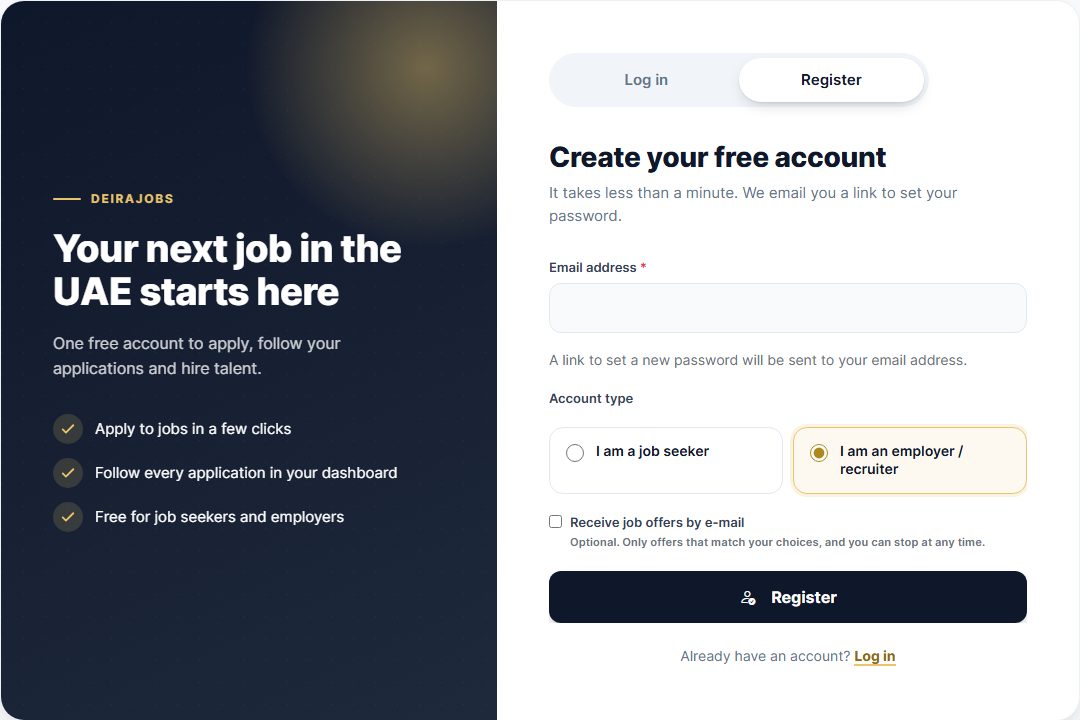
Choose the account type with care: employers and job seekers do not see the same menu in their account.
2. Post a job
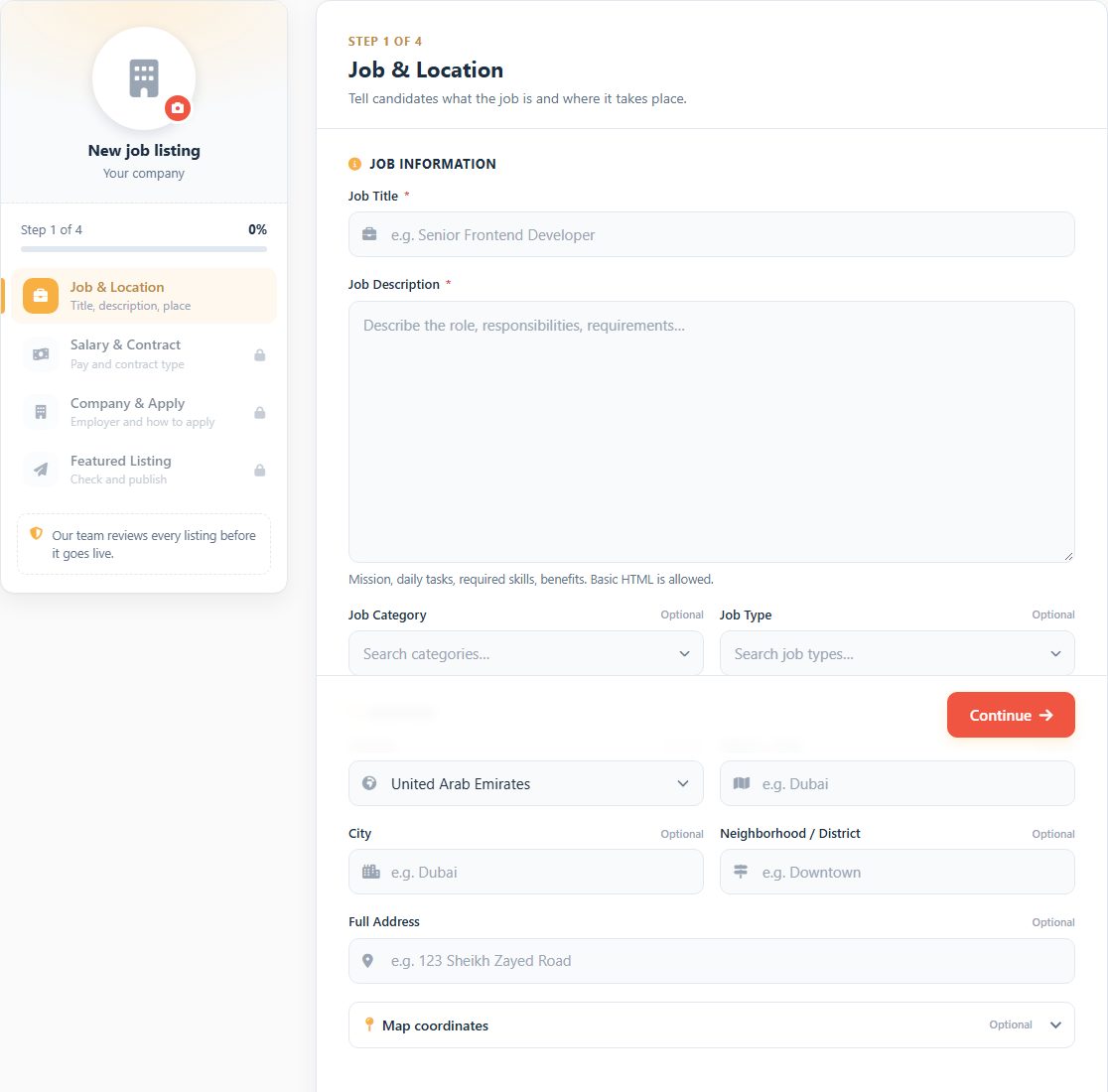
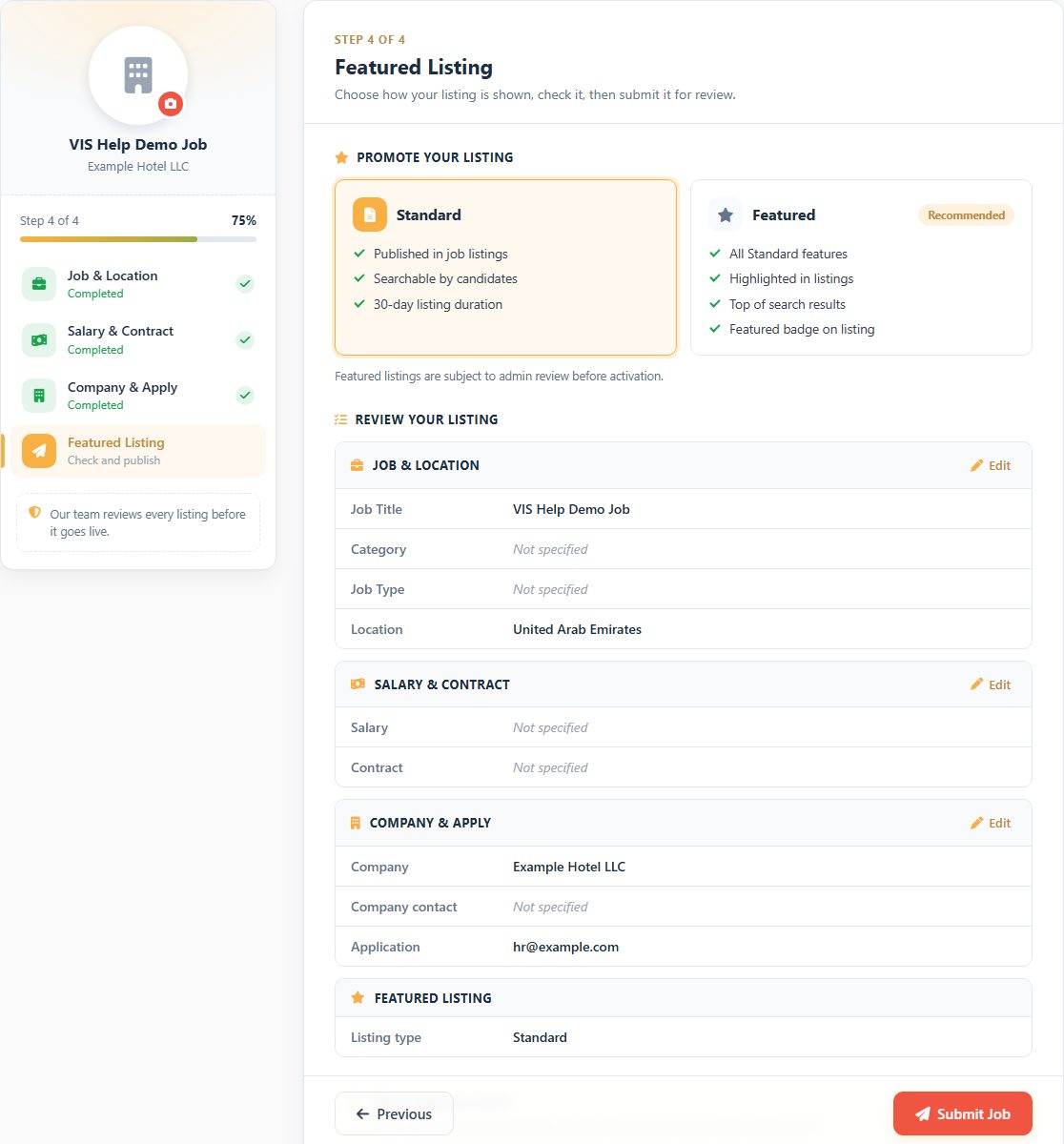
Click Post a Job in the menu. The form has 4 steps. You can see your progress on the left of the form.
- Job & Location. Type the Job Title and the Job Description: both are required. The category, the job type and the place are optional. Click Continue.
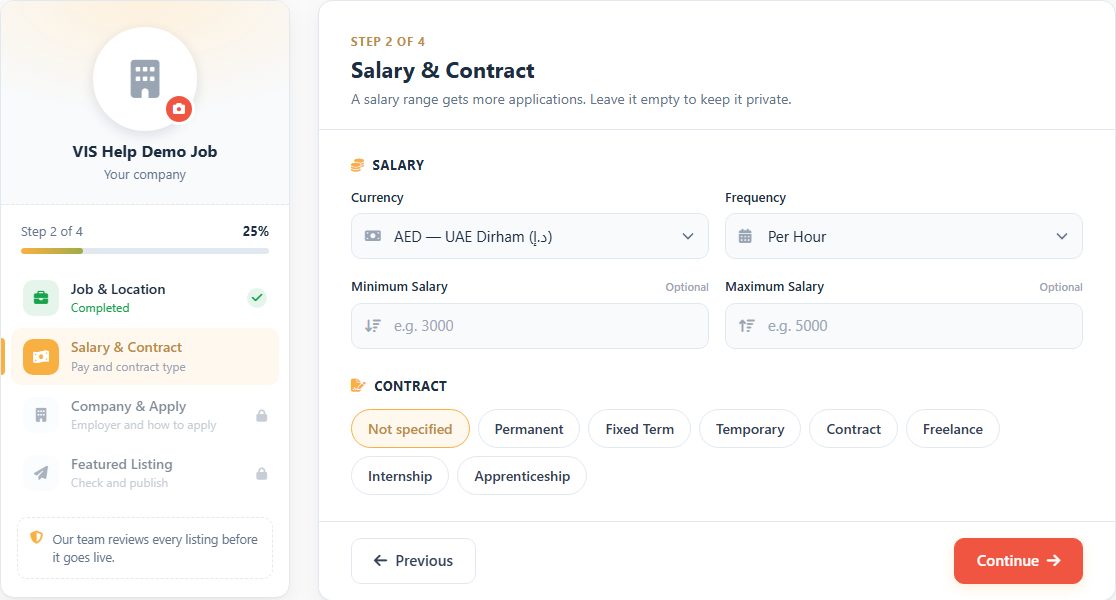
- Salary & Contract. Choose the currency and the frequency, then type the Minimum Salary and the Maximum Salary. Both are optional. A salary range gets more applications. Leave it empty to keep the salary private. Choose the contract (for example Permanent or Fixed Term). Click Continue.
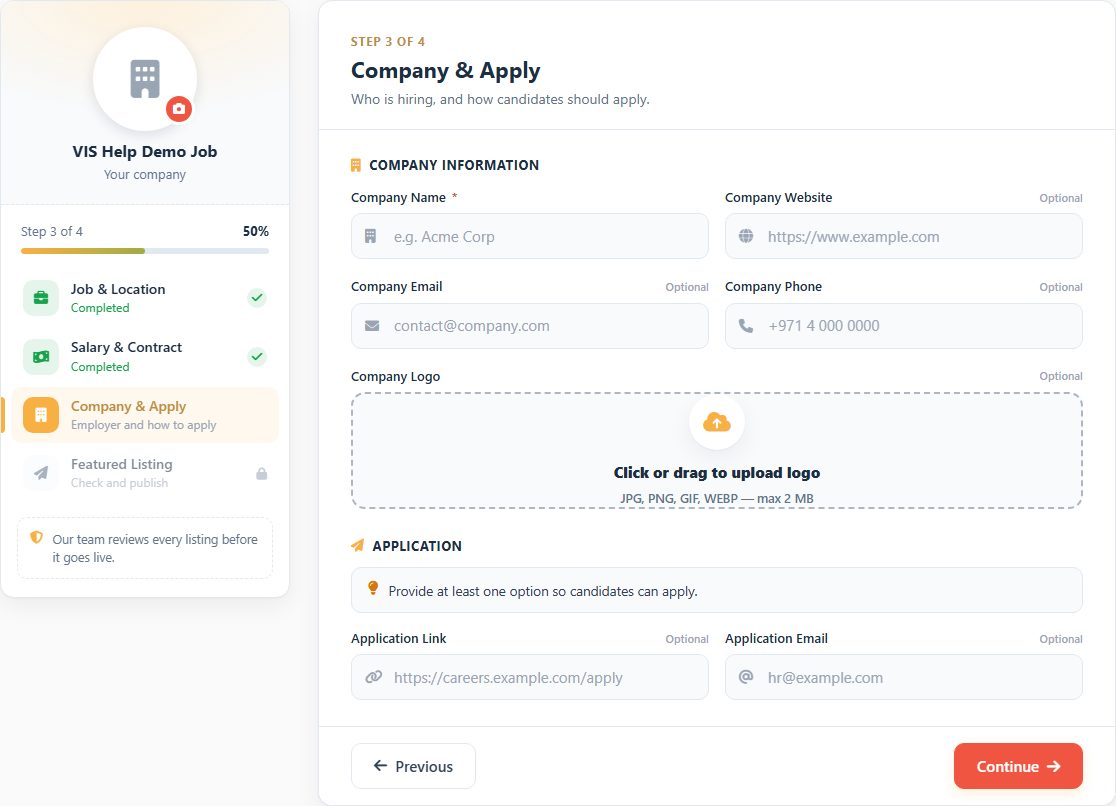
- Company & Apply. Type the Company Name: it is required. You can add the website, an e-mail, a phone number and a logo (JPG, PNG, GIF or WEBP, 2 MB at most). In Application, add an Application Link or an Application Email. Click Continue.
- Featured Listing. Choose Standard or Featured. Featured listings are checked by our team before they are activated. Read the summary of your job. Use Edit to change a part, or Previous to go back. Then click Submit Job.
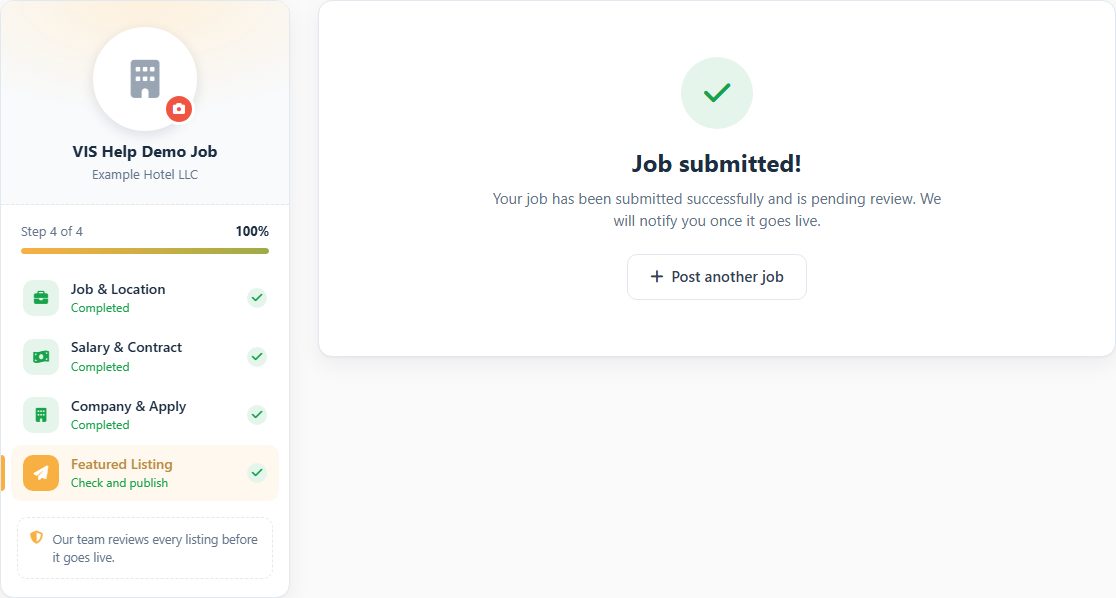
The screen then says Job submitted! To add another one, click Post another job.
3. Our team checks your job
Our team reviews every listing before it goes live. Your job is Pending in your job list until then.
- When we receive it, you get an e-mail: We received your job.
- When the job is approved, you get an e-mail: Your job is online. The job is now visible on the site.
- If the job cannot be approved, you get an e-mail: Your job was not approved. When our team wrote a reason, it is in the e-mail. If you have a question, reply to that e-mail.
4. The Verified employer badge
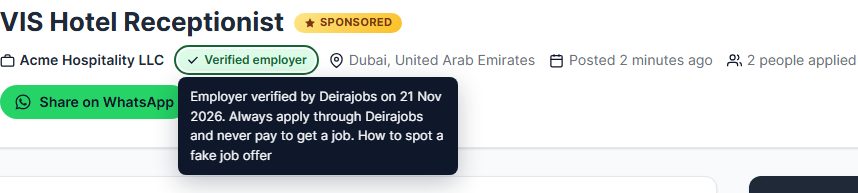
Our team can verify an employer account. When it is verified, the jobs of that account show a green Verified employer badge next to the company name, on the job cards and on the job page.
- Hover over the badge, or tap it, to read what it means: Employer verified by Deirajobs on the date of the check. Always apply through Deirajobs and never pay to get a job.
- It means we checked the company and the recruiter. It does not guarantee a job: candidates must stay careful.
- Only our team can add or remove it. It lasts for a limited time, then it disappears unless it is renewed. To ask for a check, reply to any e-mail we send you.
5. Manage the applications
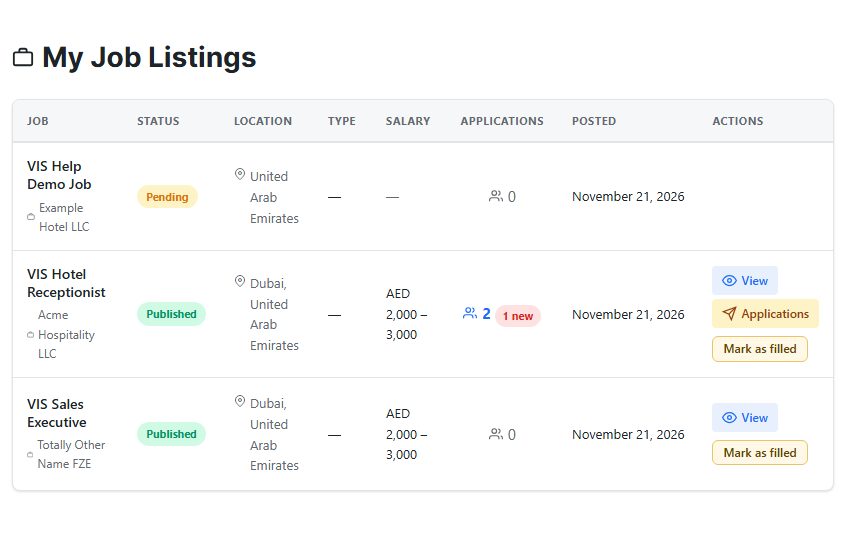
- Open My Jobs in your account menu. The page is called My Job Listings. (The applications of all your jobs are also in Applications Received.)
- For each job you see the status, the place, the salary and the number of Applications. A red mark such as 1 new shows the new ones.
- Click Applications on a job. The page Applications for: opens.
Use the tabs All, New, Viewed, Under Review, Shortlisted, Hired and Rejected to filter the list. Each line shows the name of the candidate, the date, the e-mail, the phone number and the status.
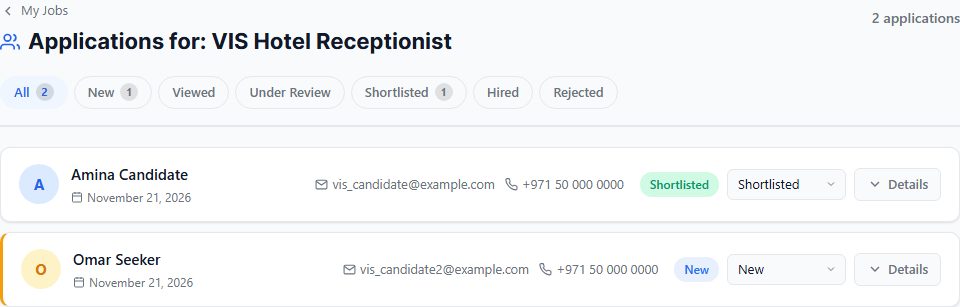
The statuses:
- New: the application has just arrived. It becomes Viewed when you open Details.
- Under Review, Shortlisted, Hired, Rejected: choose the one you want in the list of the status of the candidate.
What the candidate sees. The candidate follows each application in My Applications, with its status and a short message. When you set Shortlisted or Hired, the candidate also gets an e-mail. There is one e-mail for each status of each application.
6. Contact a candidate
The e-mail address and the phone number of the candidate are on the line of the application. Click the e-mail address to write, or use the phone number to call. Click Details to read the Personal Information and the Application Details that the candidate gave.
7. Change, close or reopen a job
- View opens the job page as candidates see it.
- Edit changes the job. It is shown in the Actions column when your account is allowed to edit that job.
- Mark as filled closes a job that is no longer open. The job page stays online with a notice, and nobody can apply any more. A published job cannot be deleted by an employer: use Mark as filled.
- Jobs also close by themselves after a set time. A closed job shows Reopen. Click it to open the job again: it starts a new period.
Need help with a scam or a fake offer? Read How to spot a fake job offer, and use Report this job on the job page.