This guide is for people who look for a job. It shows how to create an account, how to apply, and how to follow your applications.
1. Create your account
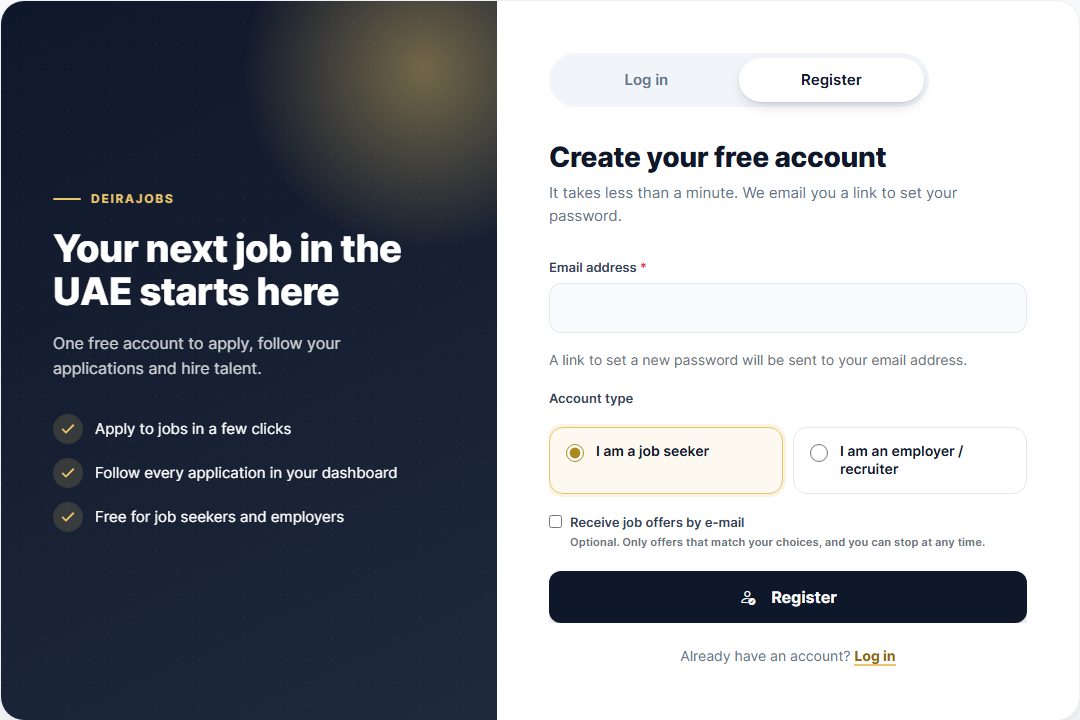
- Open the log in page of the site and click the Register tab.
- Type your Email address. A link to set a new password is sent to this address.
- Under Account type, choose I am a job seeker.
- If you want job offers by e-mail, tick Receive job offers by e-mail. This box is empty by default, and it is optional.
- Click Register. Then open the e-mail we send you, set your password and log in.
2. Build your online CV
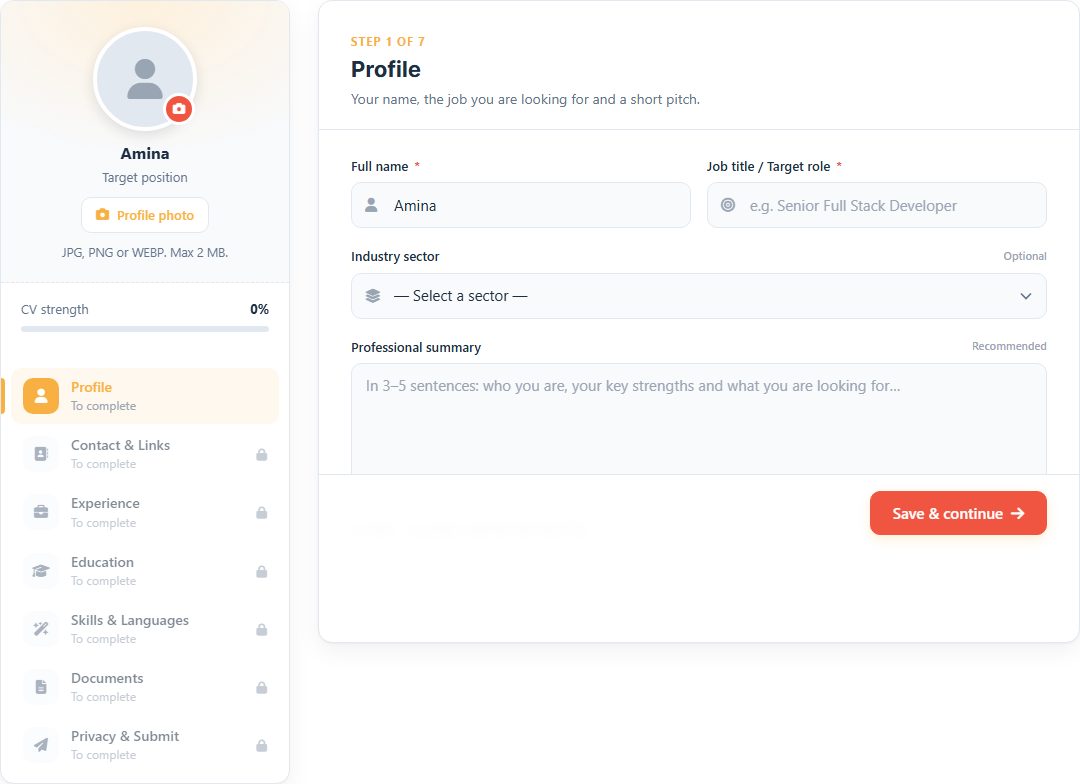
Click Build My Resume in your account menu. The CV has 7 steps: Profile, Contact & Links, Experience, Education, Skills & Languages, Documents and Privacy & Submit.
- In Profile, the Full name and the Job title / Target role are required. A short professional summary is recommended.
- Click Save & continue to go to the next step, or Back to go to the previous one.
- In Experience, click Add an experience for each job you had.
- In the last step, read the privacy choices before you submit the CV.
Your CV is not open to everybody. The box Make my CV visible to employers is empty by default: tick it only if you agree to be found by employers. You can change it at any time.
3. Apply for a job
- Open a job and click Apply Now. If you are not logged in, you see Login to Apply: log in first.
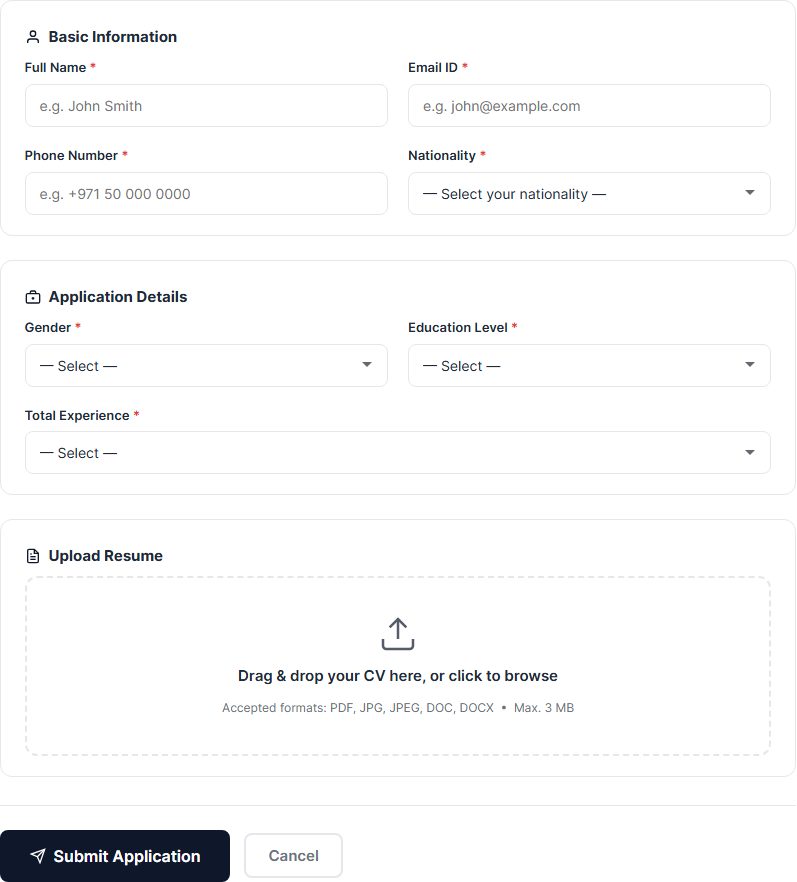
- In Basic Information, check your Full Name, Email ID, Phone Number and Nationality.
- In Application Details, choose your Gender, your Education Level and your Total Experience.
- Under Upload Resume, add your CV (PDF, JPG, JPEG, DOC or DOCX, 3 MB at most).
- Click Submit Application. To leave the form, click Cancel.
You get an e-mail to tell you that your application was sent. You can apply only once to the same job with the same e-mail address.
4. Follow your applications
Open My Applications in your account menu. At the top you see how many applications you have in total, Under Review, Shortlisted and Hired. Use the tabs to filter them.
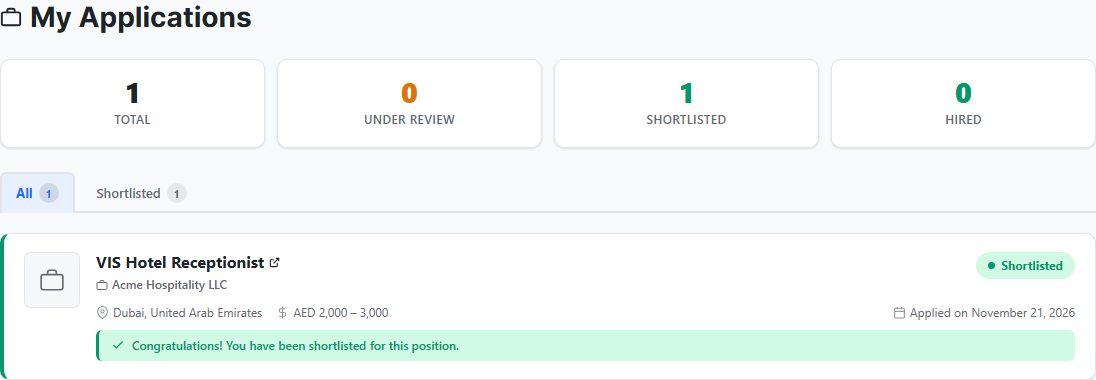
Each application shows the job, the company, the date and its status: New, Viewed, Under Review, Shortlisted, Hired or Rejected, with a short message. When an employer sets Shortlisted or Hired, you also get an e-mail.
5. Job alerts
Job alerts send you a selection of recent jobs by e-mail.
- Open your account and click Job alerts in the account menu.
- Tick Receive job offers by e-mail.
- Tick the Job categories and the City or emirate you want. If you tick none, you get all of them.
- Click Save.
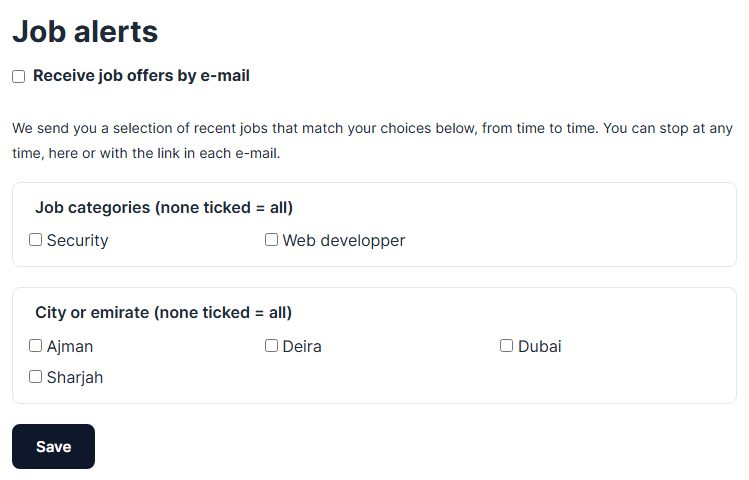
You can also click Get alerts for similar jobs on a job page, or Set up job alerts in the bar that may appear at the top of the site. Later hides the bar for a while.
To stop the alerts, untick Receive job offers by e-mail and click Save. Or click Unsubscribe at the bottom of any alert e-mail, then click the Unsubscribe button on the page that opens. E-mails about your account and your applications are still sent.
6. Job Guarantee
Click Job Guarantee in the menu of the site to join the programme. The form has 5 steps: Personal Info, Location, Profile, Documents and Confirm.
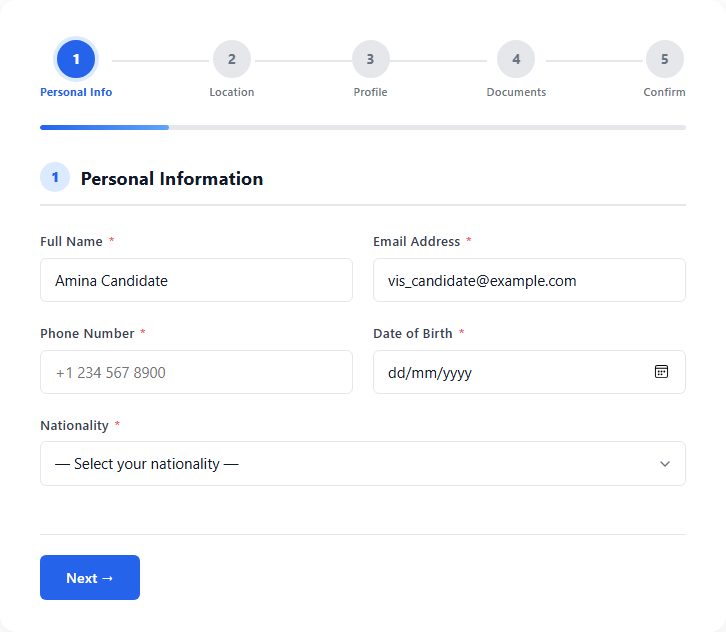
After you send it, our team reviews your application. You get an e-mail as soon as a decision is made. Then you follow everything in My Job Guarantee Space. When our team chooses a job for you, you get an e-mail, and you can answer in your space. The answers are shown as Awaiting your answer, Thinking it over, Accepted or Declined.
7. Stay safe
- Never pay to get a job. Never share your bank card details or codes.
- A Verified employer badge means our team checked the company and the recruiter. It is not a guarantee of the job.
- Use Report this job on the job page if something looks wrong.
- Read How to spot a fake job offer.